Download & Deploy
note
Please make sure you've successfully configured your Firebase Project before moving ahead;
If you didn't configure your Firebase Project yet, read Setup Firebase Project section carefully and configure your project first.
1: Download Quizzer Bundle#
Download Quizzer Bundle folder using the Download button given below and Unzip the download pack.
Download2: Deployment#
Important! Navigate to the quizzer-public folder; You should be able to see build folder, along with some other files e.g: firebase.json, firestore.rules etc. inside this folder.
Open quizzer-public directory in a command prompt / (or PowerShell) / (or Terminal in case you're using macOS), and run the following commands sequentially for a successful deployment
Install Firebase CLI#
Install Firebase CLI in your machine by running the following command
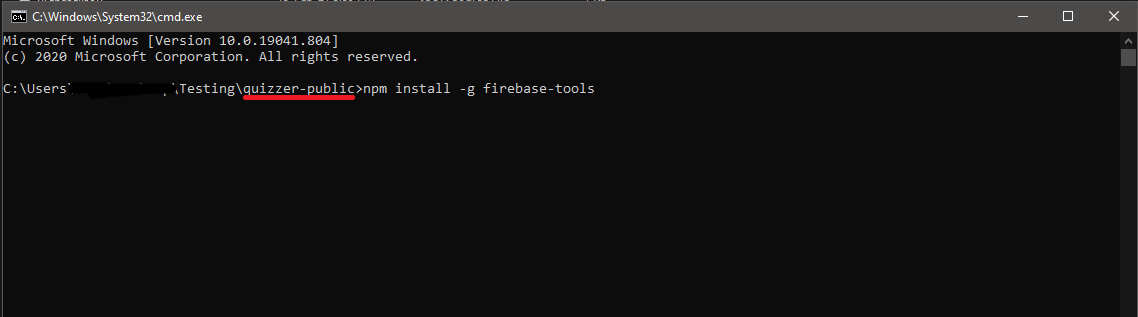
Once Firebase CLI is installed; We can run further commands
Login To Firebase#
Now we have to login into firebase from command line. Type in the following command.
It will take you to the sign-in page in the browser, once you’ve successfully logged in; it will show you something like this On browser
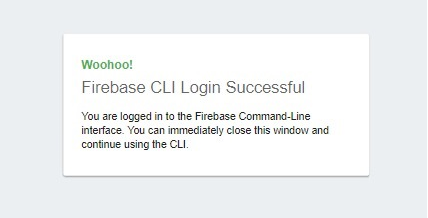
and ON command line
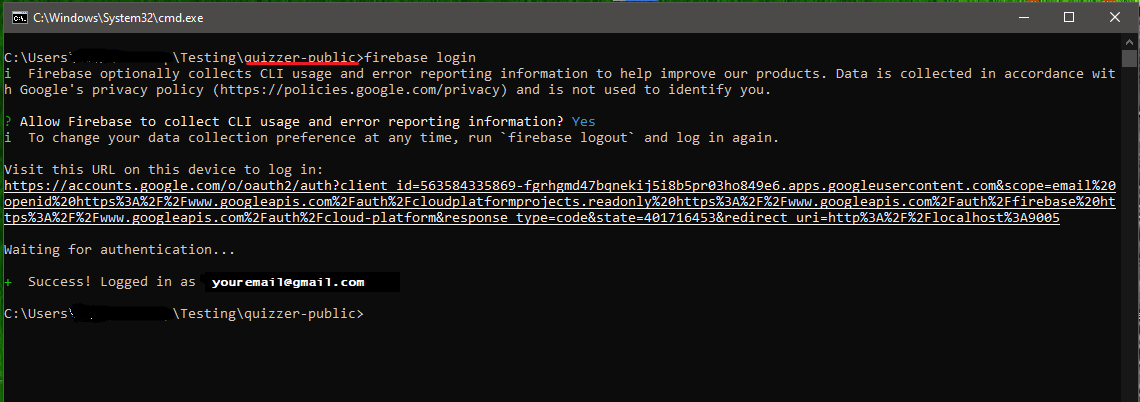
You're successfully logged in to CLI
Connect Firebase Project#
Type in the following command to connect your firebase project with this quizzer-public folder.
It will ask you to select firebase project, select project which we created in step 2
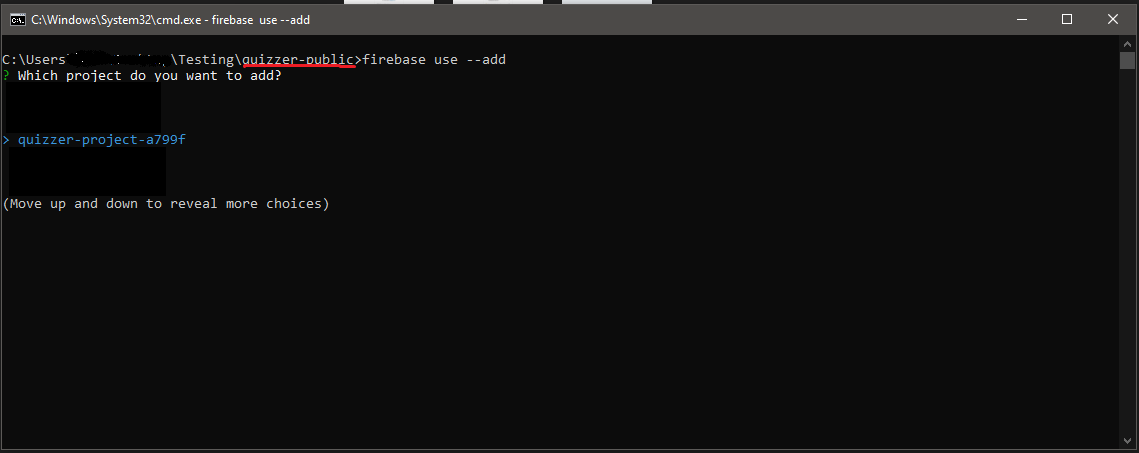
Then it will ask: What alias do you want to use for this project? (e.g. staging) Type default and then press enter
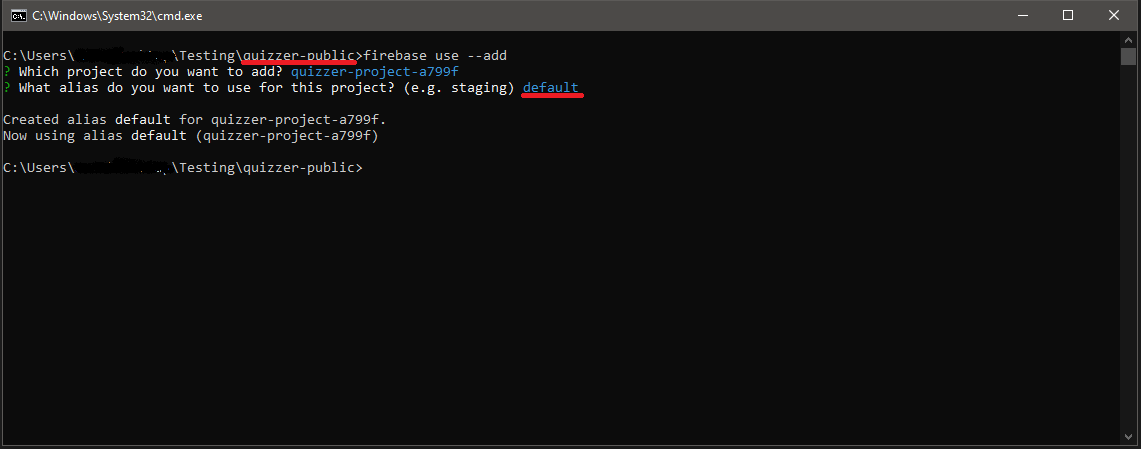
You've successfully connected your firebase project
Deploy#
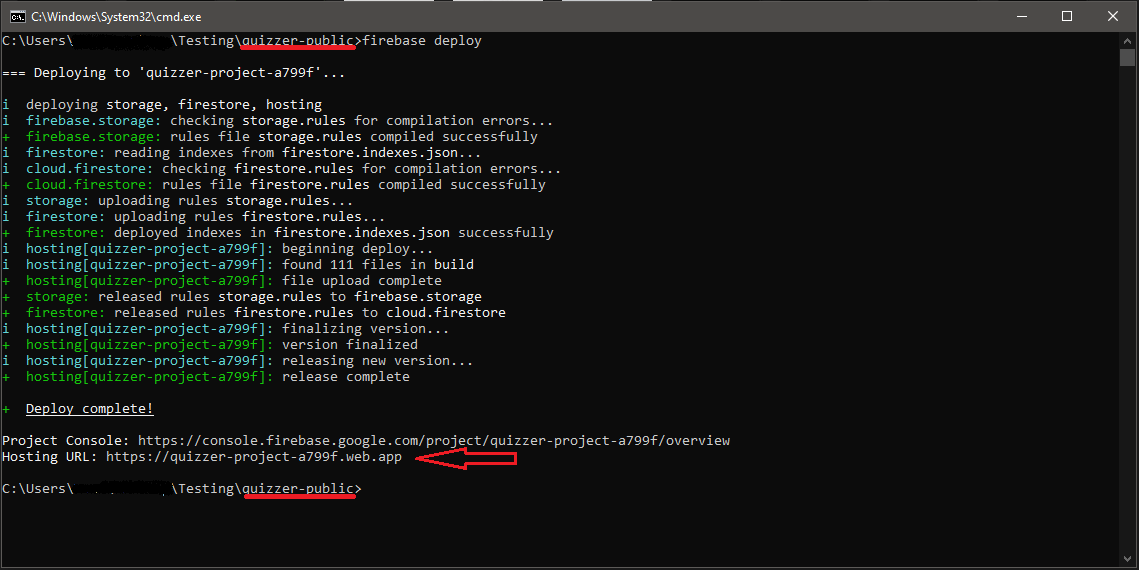
Type in the following command to deploy your app to firebase project.
That's it!#
Congratulations! your Quizzer application is now live
You can check by going to url which is provided in the command line in my case it is https://quizzer-project-a799f.web.app

Now What?#
Open URL which is provided in the command line and setup your Admin Account, with your full name, email and password.
Once you've configured your admin account, it will automatically create some sample quizzes for you. which you can edit/duplicate or start creating quizzes from scratch using Quizzer Dashboard.