Setup Firebase Project
note
If you already know about creating and setting up a Firebase Project;
Then Create a Firebase project, Enable Email/Password Authentication, and Create Cloud Firestore and you can skip this section—or read it below for a light refresher.
Creating and Setting up Firebase Project for Quizzer#
To create Firebase Projects, create an account on Firebase Console https://firebase.google.com/ or Sign in using your Google account, then select the Go to console option for the next steps:
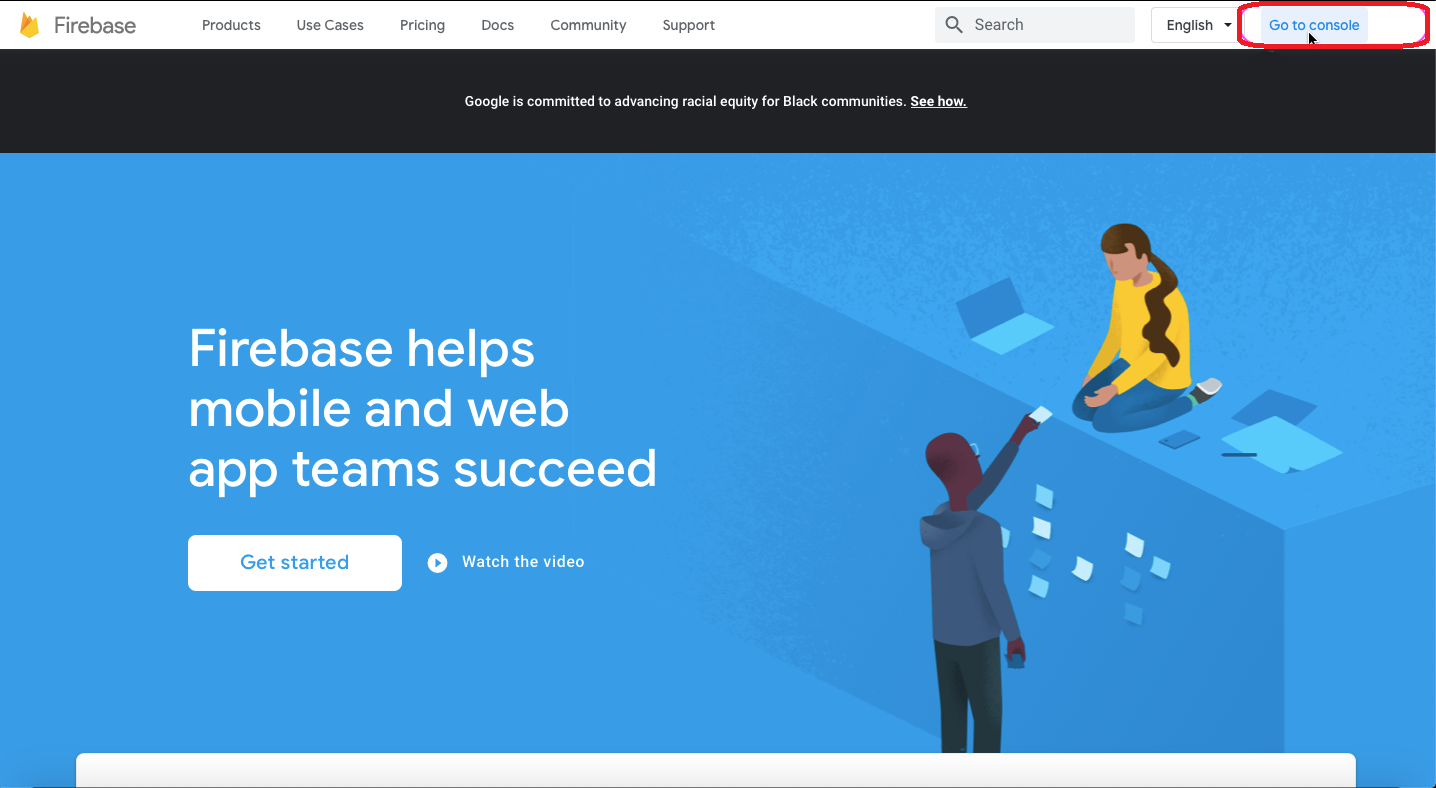
1: Create/Add a Firebase Project#
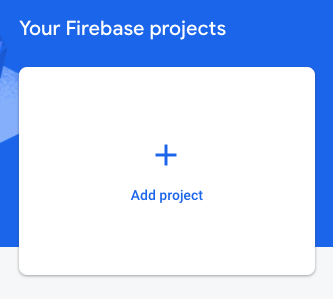
The first time, Firebase will show a Create a Project option to set up a project. If there is already an existing project in the current account, select the Add Project
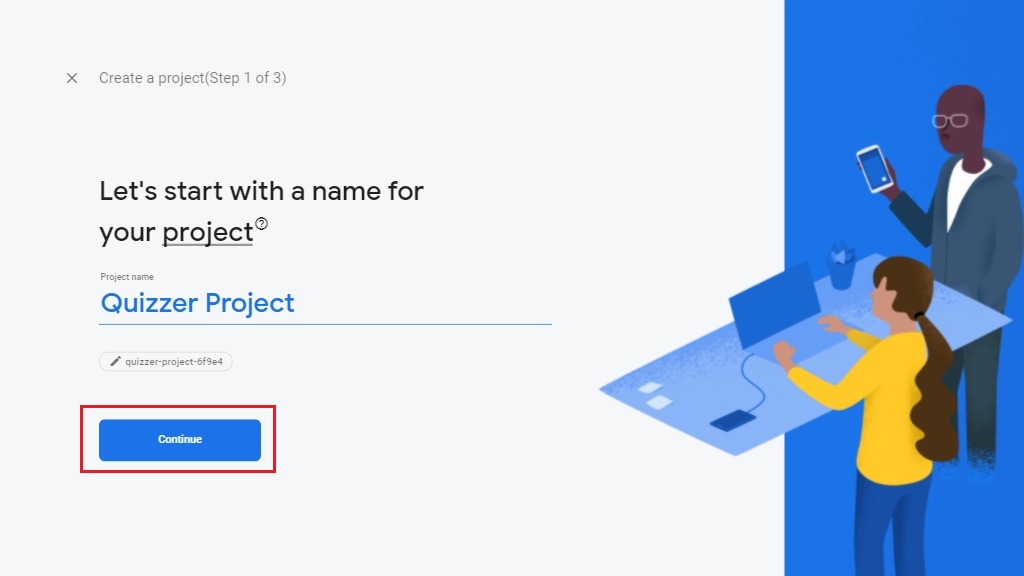
Add Name: Enter firebase project name and click Continue
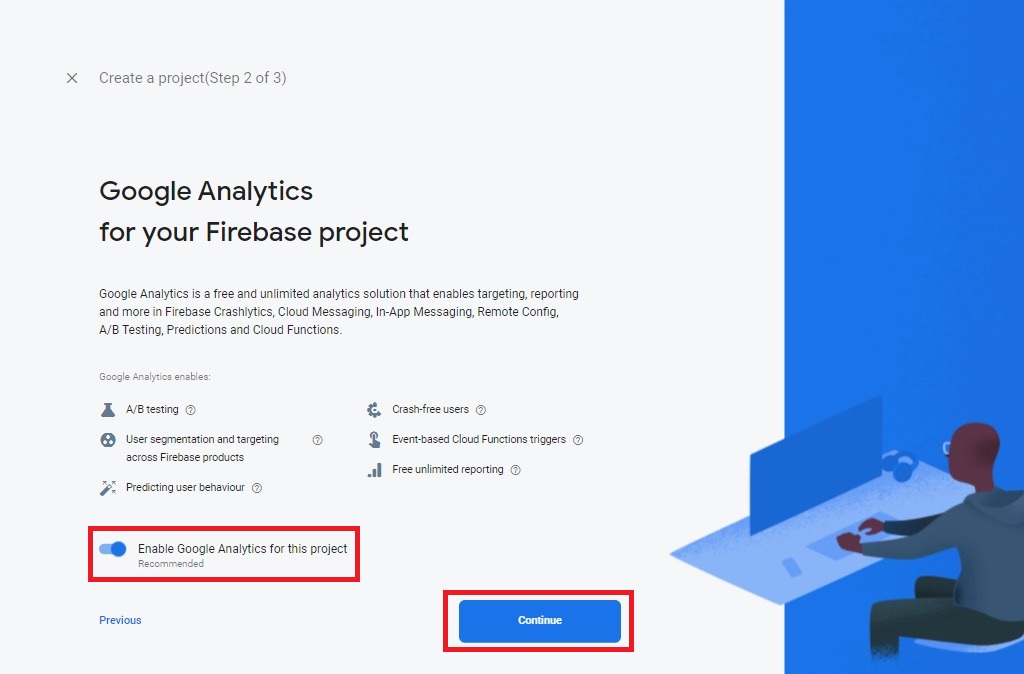
Enable Analytics: Enable Analytics for this project and click Continue
Choose Analytics Account: Choose or create a google analytics account and click Create Project
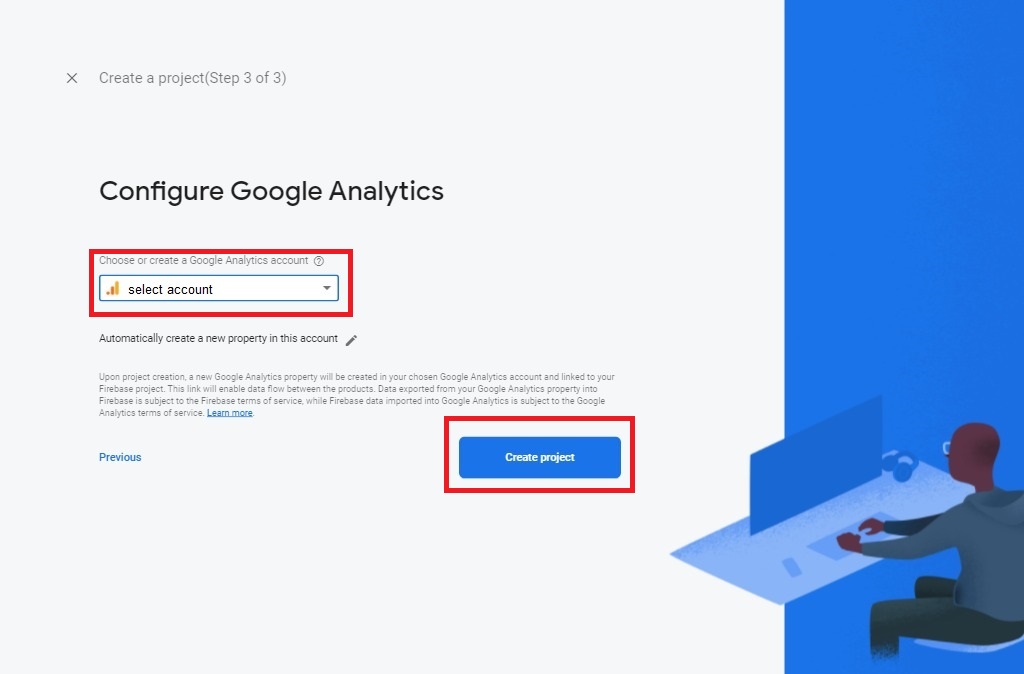
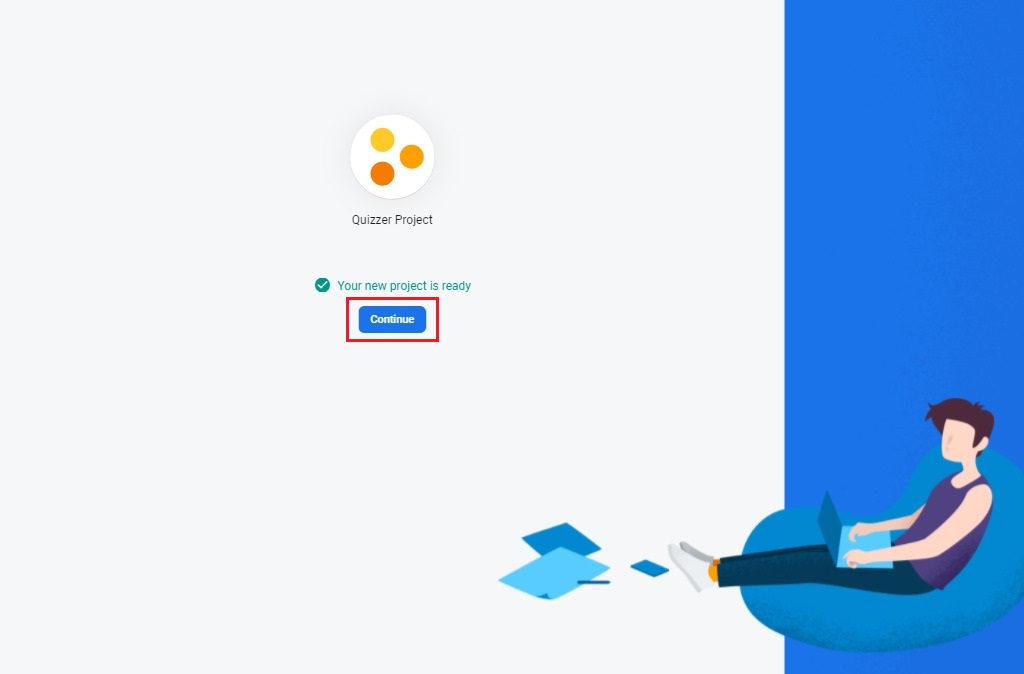
Firebase Project Created Successfully Your new firebase project is ready; now click Continue
2: Setup Firebase Authentication#
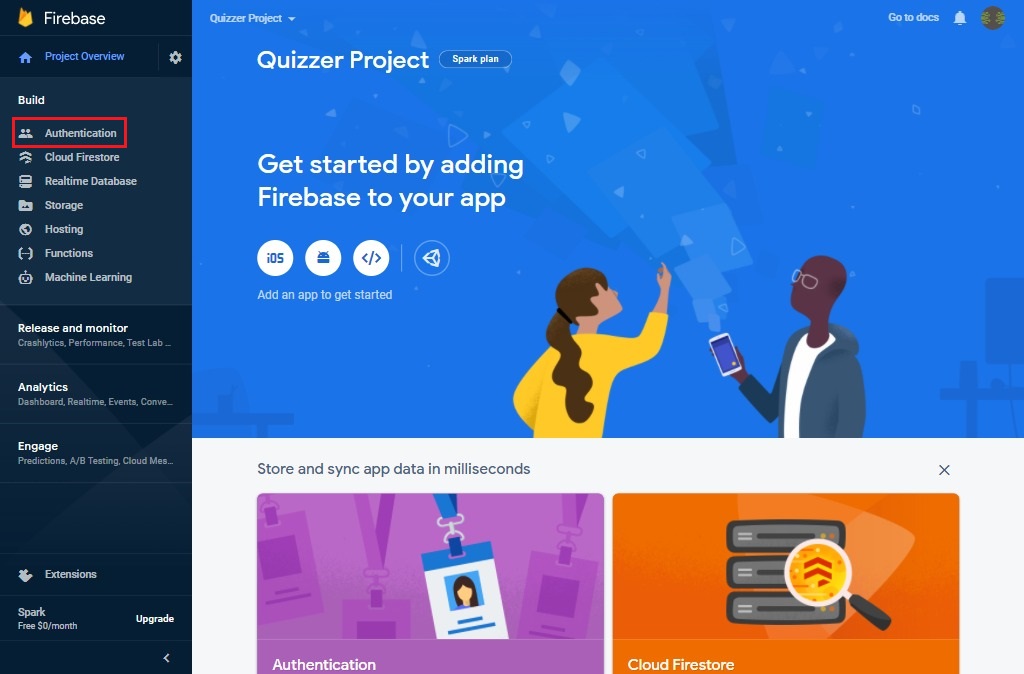
After you've created your firebase project, and you've followed all the steps above, it will take you to firebase project dashboard; and you would see a screen like this. In left menu bar click on Authentication
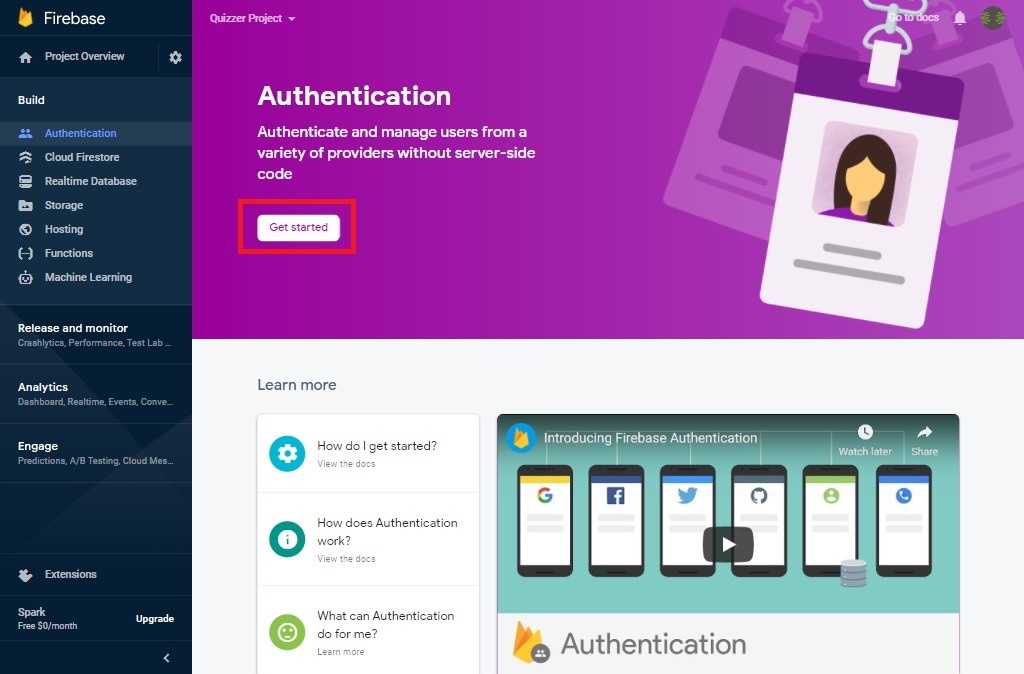
Click on Get Started button
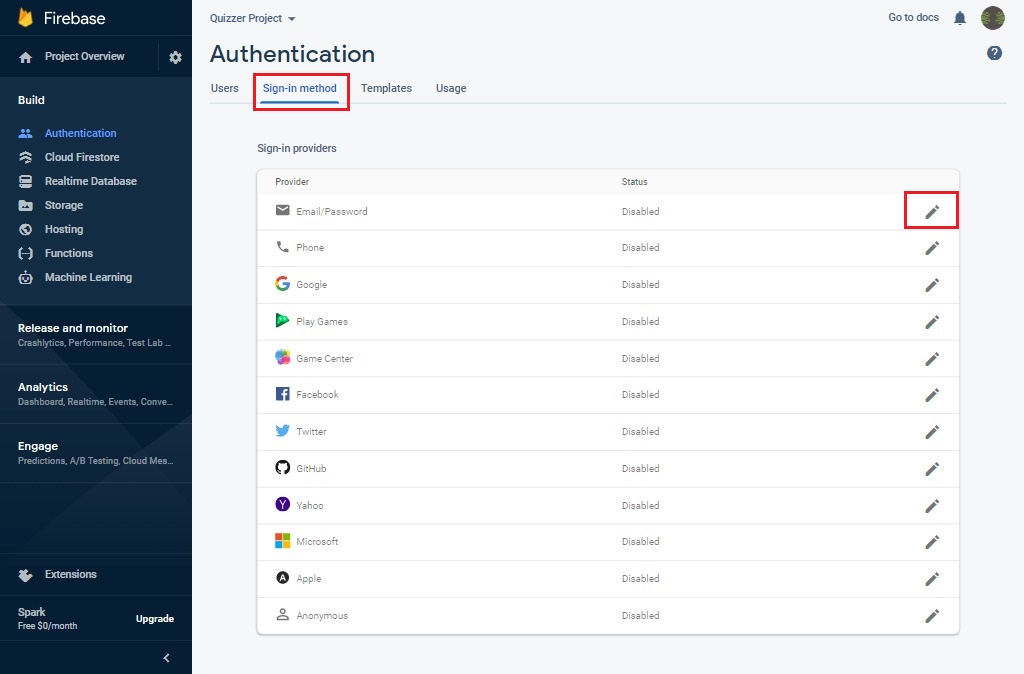
Click on Sign-in method tab and then click on Pencil icon in front of Email/Password option
Enable Email/Password and then click Save.
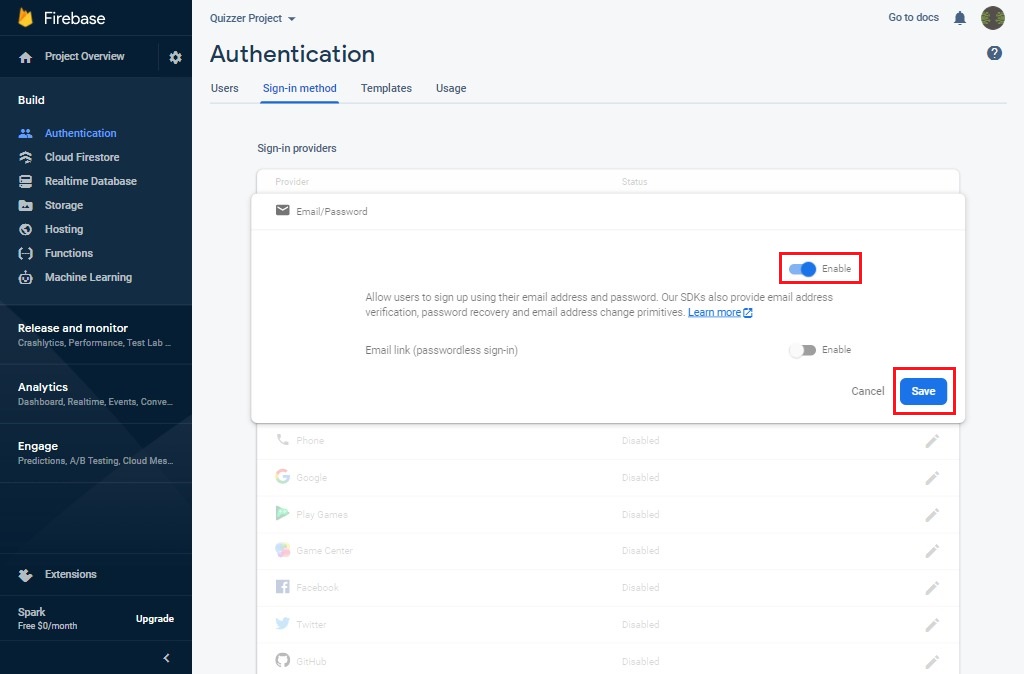
You've configured Authentication for Quizzer.
3: Setup Cloud Firestore#
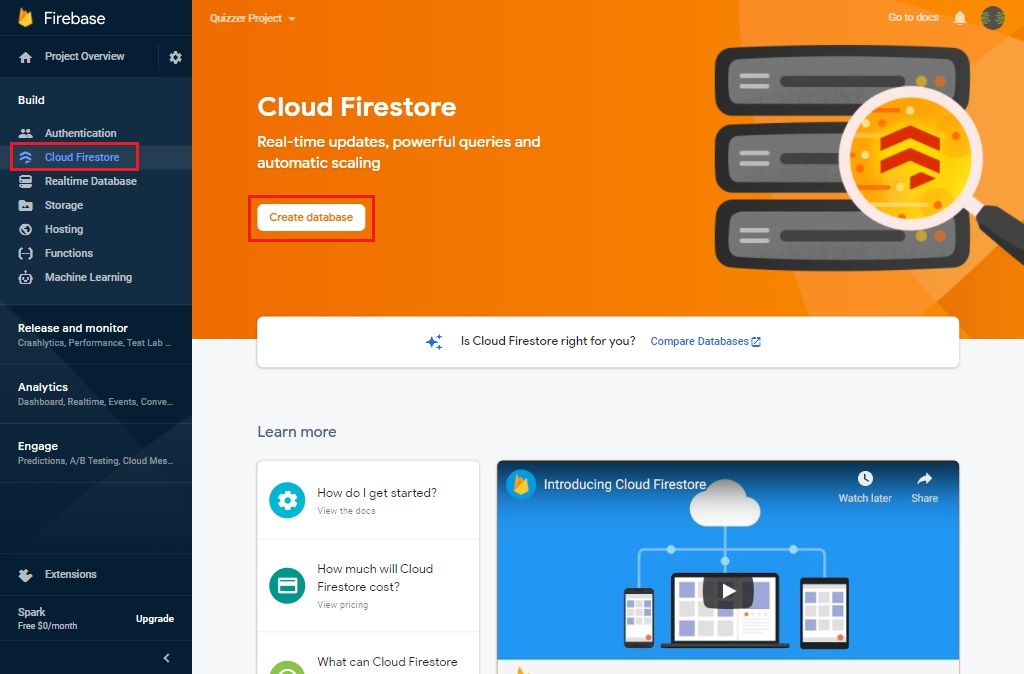
In left menu bar click on Cloud Firestore and then click on Create database button
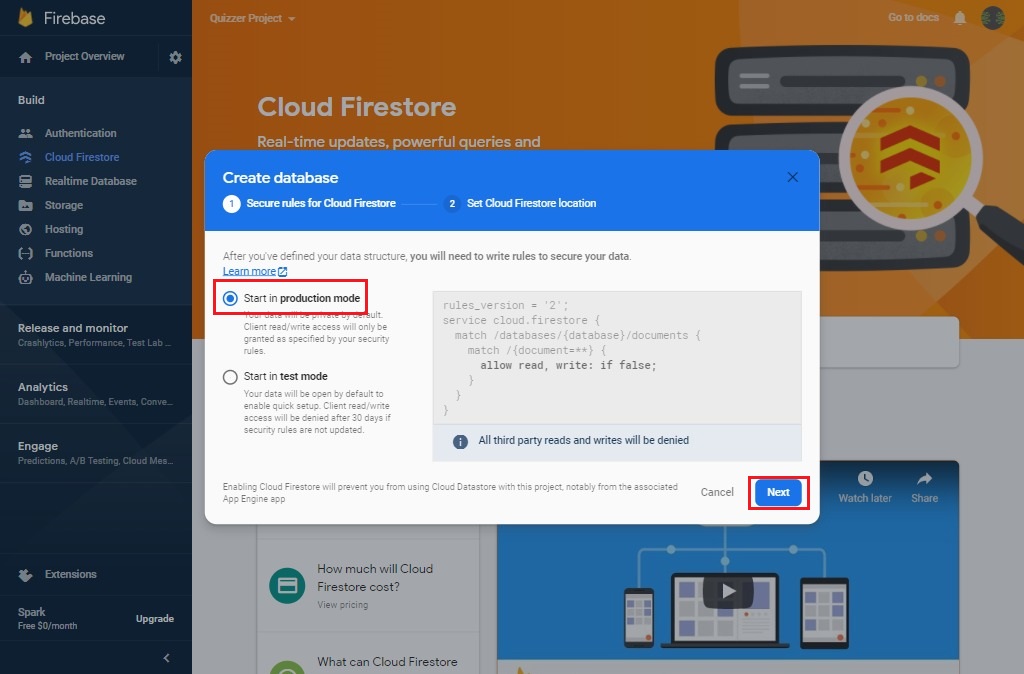
Choose Start in production mode and click on Next button
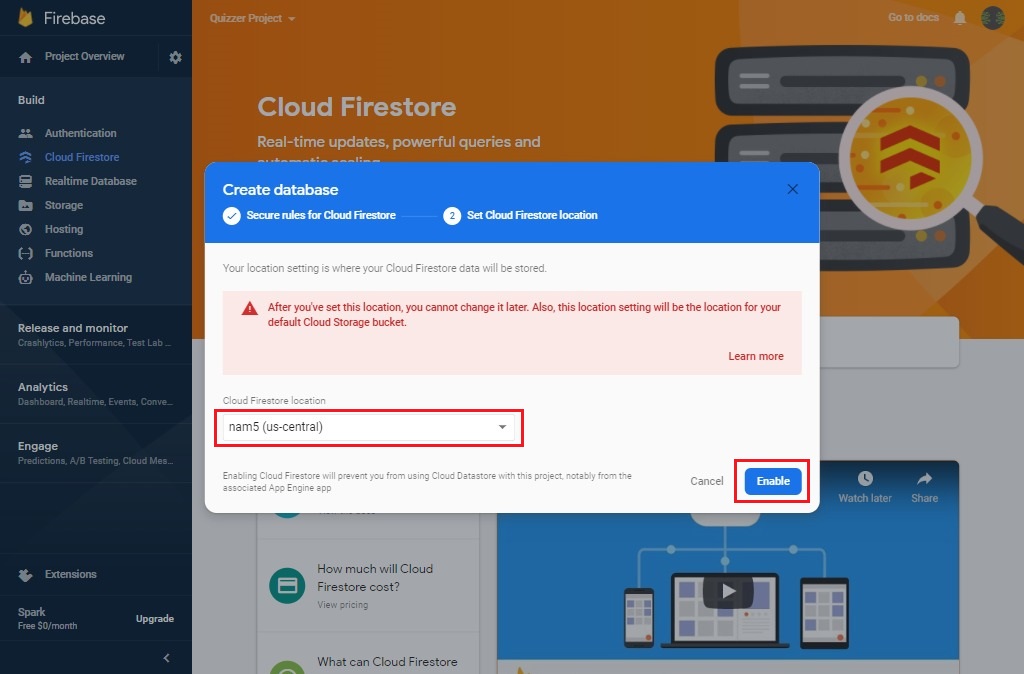
Choose Cloud Firestore location according to your region and click on Enable button.
* Select location/region near to your city. To learn more about Cloud Firestore location Click Here
After you've enabled Cloud Firestore you would see a screen like this
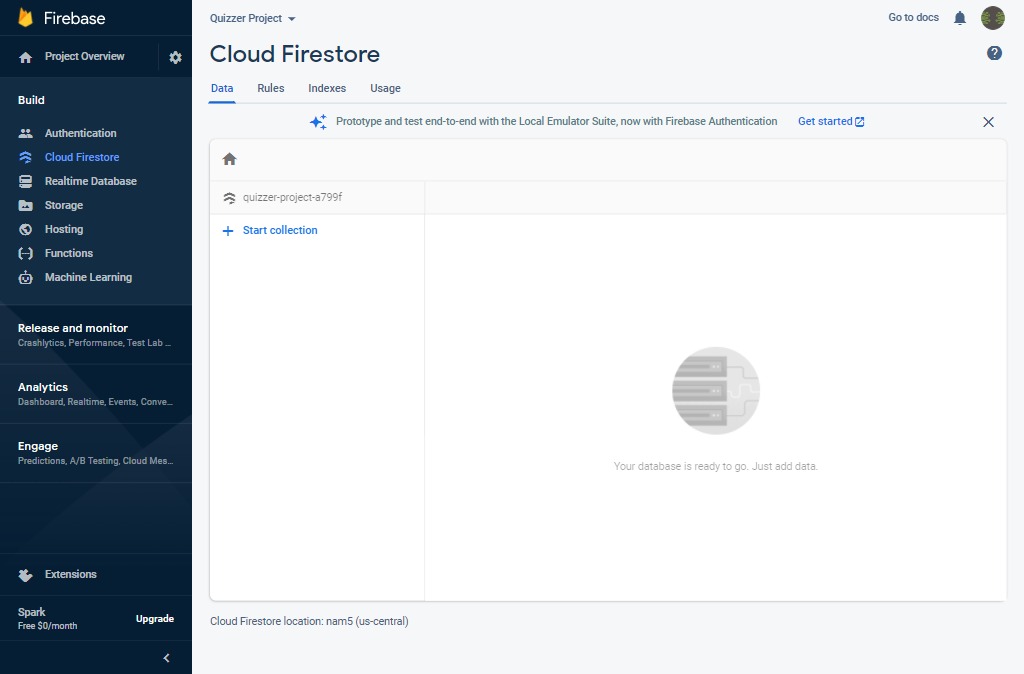
You've configured Cloud Firestore for Quizzer.
You've setup Firebase Project successfully. Now you can move to next step Download and Deploy